
Kidden Parental Control App
Applyft LtdParenting
4.25.00 Reviews
- Version
- p1.5.6
- Installs
- 50.00K
- Age Rating
- Everyone
Screenshots
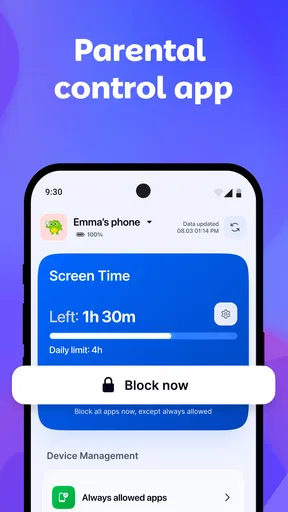
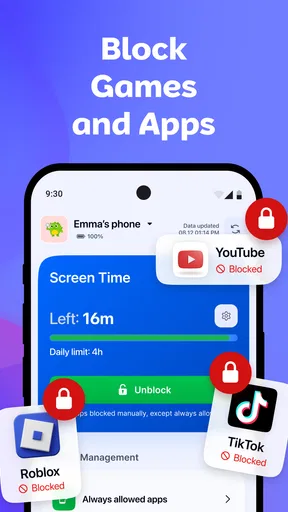
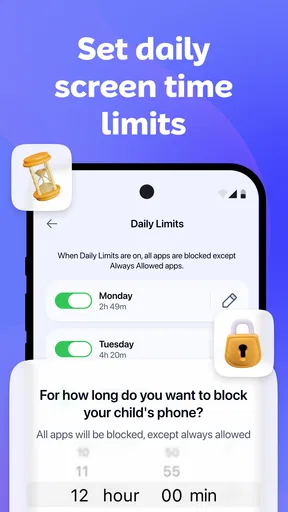
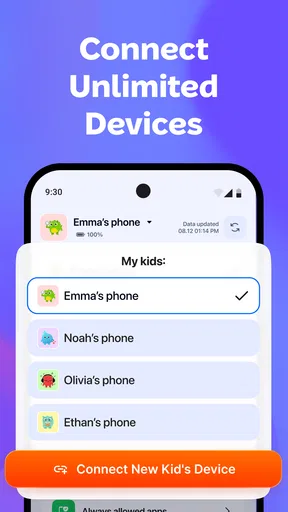

Our Review of Kidden Parental Control App
 Analysis by Appyee
When parents look for a screen-time tool, the difficult part is rarely finding an app. The difficult part is making the arrangement work calmly on an ordinary family day. A child may need a device for school, a parent may need a clear boundary around entertainment, and both people need to understand what happens when that boundary is reached. I approached Kidden with that practical question rather than treating it as another download to install and forget.
Kidden is a free parenting app from Applyft Ltd, built around managing children’s screen time and device use. It has an Everyone content rating, supports devices running Android 7.0 or later, and its current version is p1.5.6. The app has reached over 50 thousand installs and holds a 4.2 average from around 1.4 thousand ratings, which suggests that it has attracted a meaningful group of families while still leaving room for mixed experiences.
My overall impression is that Kidden makes the most sense for parents who want a dedicated place to organize device boundaries instead of relying only on a spoken agreement or the basic controls already built into a phone. It is less suitable for someone expecting a completely invisible, automatic solution. Parental control works best when the adult sets it up carefully, explains the rules, and checks the arrangement when a child’s school schedule or device habits change.
Where families usually get stuck
I find that families often get stuck when a sensible boundary meets a day that does not go to plan: homework runs late, a ride is delayed, or a child needs to reach a parent. This section looks at how to distinguish a rule that no longer fits from a control that may need checking, so the next step is a practical setup review rather than a quick reaction.
The first problem is often the family routine, not the app
A screen-time tool can be technically correct and still feel frustrating if the family has not decided what “reasonable use” means. Is homework allowed during a general limit? Should a child be able to contact a parent after the evening cutoff? Does a weekend rule need to differ from a school-day rule? Kidden can only be useful when these questions have a practical answer.
I would begin with one simple goal instead of trying to control every part of a child’s device immediately. For example, a parent might want to reduce late-night entertainment while leaving daytime school communication alone. That is easier to explain and easier to judge than a vague instruction to “use the phone less.” It also gives the family a clear way to notice whether the arrangement is helping.
The second common sticking point is expectation. Parents may expect a control to take effect instantly, while a child may expect an exception because a task is unfinished or a friend is waiting. Those are family-policy questions rather than signs that Kidden is malfunctioning. Before changing settings repeatedly, I would check whether the rule itself matches the situation.
Why a child may think the control is inconsistent
Device use is not always one continuous activity. A child can move between schoolwork, messaging, video, games, and a browser within the same period. A broad device rule may therefore feel unfair if the child sees one task as necessary and another as optional. This is where a short, specific explanation matters: the adult should describe which behavior the rule is intended to manage and when it will be reviewed.
A realistic example is a child who returns home, uses a tablet for homework, then continues watching videos without noticing how much time has passed. A parent might use Kidden as part of a routine that separates the school task from leisure time. The important step is not simply activating control; it is agreeing that homework should be completed first and that entertainment has a defined place afterward.
The strongest results come from treating Kidden as a shared routine tool, not as a substitute for a family conversation. That distinction prevents many arguments that are incorrectly blamed on the application.
What to do before assuming something is broken
If a rule appears not to apply, I would first check the basics in a fixed order. Confirm that the parent is looking at the intended child or device arrangement, then review the active rule and its timing. Next, check whether the child is using the same device that was included in the setup. A surprising number of “failures” in parental control come from a second phone, an old tablet, or a newly reset device being used instead.
I would also avoid changing several settings at once. If the schedule, device, and intended limit are all edited together, it becomes difficult to identify what solved the issue. One small change followed by a normal test is much more informative. This is a useful habit with Kidden because it keeps troubleshooting from turning into guesswork.
Setup checks that make daily use smoother
Before relying on a new routine, I like to check the details that can quietly undermine it, especially which device is in use and whether the rule reflects the child’s actual schedule. A little preparation can prevent repeated exceptions and confusing expectations. The following section focuses on those checks and on making the routine easier for the adults to maintain, too.
Start with the child’s actual device pattern
During setup, I would write down when the device is genuinely used rather than designing rules around an ideal timetable. A child who uses a phone for transport updates, school messages, or family contact may need a different arrangement from a child who mainly uses a tablet at home. Kidden belongs in that real context. A rule that ignores necessary use will quickly create requests for exceptions.
It is also worth deciding who will maintain the arrangement. In a household with two parents or carers, confusion can arise when one person changes a rule and the other person does not know why. Even without adding complicated procedures, agreeing that one adult reviews settings and communicates changes can make the experience much less chaotic.
Check compatibility before building expectations
Kidden supports Android 7.0 and newer, so the first practical check is the operating system on the intended device. If a child uses several devices, each one should be considered separately rather than assuming that a rule on one device automatically represents the whole household. This is especially important when an older spare phone is brought back into use.
The app is free to install, but it includes in-app purchases ranging from $6.99 to $69.99 per item. I would therefore decide in advance whether the free experience is enough for the family’s needs and avoid treating a purchase as an automatic solution to a setup problem. If a control is not behaving as expected, paying for something before identifying the cause is unlikely to make troubleshooting clearer.
Use a short trial period
Rather than announcing a permanent system on the first day, I would test Kidden during a normal week. Pick one device, one child, and one clearly explained boundary. Observe whether the rule fits schoolwork, travel, meals, and bedtime. This trial reveals practical friction that a settings screen cannot show, such as a child needing access at a time the parent had not considered.
A short trial also makes it easier to ask the child for useful feedback without surrendering the boundary. The question is not simply “Do you like it?” A better question is “When did the rule get in the way of something you needed?” That answer can show whether the issue is an overly broad rule, an incorrect device assumption, or a genuine technical problem.
Keep the first explanation concrete
Children respond better when they know what will happen. I would explain the purpose of the rule, the part of the day it covers, and the process for raising a legitimate problem. Avoid promising that every request will be accepted, but make it clear that a parent will listen when schoolwork, safety, or family plans create an exception.
This approach is particularly useful for younger users because the Everyone rating makes Kidden broadly accessible, but an age rating does not automatically make a setup understandable to every child. The adult still needs to translate the control into language that fits the child’s age and maturity.
Review after changes to the device
Parental controls can become confusing after a device update, reset, account change, or replacement. I would treat any major device change as a reason to revisit the arrangement rather than assuming the old setup remains identical. Check the selected device, the current timing, and the child’s normal usage before drawing conclusions from one unusual day.
This is also a good reason to keep expectations modest. Kidden is a tool for managing device use; it is not a complete family safety plan, a replacement for supervision, or a guarantee that every digital situation will be handled automatically. Parents still need to make decisions about communication, content, and the child’s wider online habits.
Recovering a workflow when something goes wrong
When a limit seems to behave unexpectedly, I would pause before changing several settings or removing the boundary altogether. A simple, repeatable check can help separate a timing misunderstanding from a device or setup issue, while keeping the family’s original goal in view. Here I’ll outline a calmer way to restore a workable routine.
Separate a missed rule from a misunderstood rule
When a child says, “It did not work,” I would ask what they expected to happen and what actually happened. Perhaps the rule was intended for evening use but the child was testing it during the afternoon. Perhaps the wrong device was in use. Perhaps the parent assumed a general device boundary would distinguish homework from entertainment. These are different problems and need different responses.
A useful recovery method is to recreate the situation in simple terms: which device, which part of the day, and what activity was taking place. Do not immediately add more restrictions. First establish whether the original arrangement was active and appropriate. This keeps the family from responding to confusion with an unnecessarily severe rule.
Change one thing, then test normally
If the arrangement needs adjustment, I would make one change and allow it to run through an ordinary use period. Testing only by repeatedly opening settings can give a false sense of certainty. A real test includes the child using the device in the way that caused the concern, such as starting entertainment after homework or trying to use the phone near the agreed cutoff.
Documenting the change in a simple note can help when more than one adult is involved. Record the reason in everyday language, not technical jargon: “Adjusted evening device rule because family calls run late.” This prevents the same setting from being changed back and forth and gives the next review a clear starting point.
Keep exceptions narrow
Families often need exceptions, but unlimited exceptions can quietly erase the purpose of a control. I prefer a narrow exception with a clear reason and an end point. A late school project, a trip, or a need to contact a parent may justify flexibility, while a general complaint of boredom may call for a different conversation.
This is one of the less obvious trade-offs of using a dedicated parenting app. The more precisely a parent tries to manage every circumstance, the more maintenance the system demands. Kidden is likely to be most comfortable for families willing to review a small number of meaningful boundaries rather than constantly micromanage every minute.
When to seek general technical help
If the basic checks do not resolve a problem, I would use the app’s normal support or device-help route and describe the situation precisely. Include the Android version, the device involved, the rule being tested, and the time of the test. Avoid sending a vague message such as “screen time is broken,” because it gives support very little to work with.
Before contacting anyone, reproduce the issue once more after checking the device and active arrangement. If the behavior is repeatable, that is useful information. If it happens only once, the cause may be a temporary device condition rather than a persistent Kidden issue. In either case, a clear account is more valuable than repeatedly reinstalling the app without understanding what changed.
When Kidden is not the cause
Not every frustrating screen-time moment points to a technical fault; the device itself, an unclear household rule, or a change in routine may be responsible. I think it helps to consider those possibilities before blaming the control or tightening it further. The final section looks at when another approach may suit the family better.
Device behavior can look like an app problem
A slow device, unstable connection, low battery, or background restriction can make any control feel delayed or inconsistent. I would check whether other apps are also behaving unusually before deciding that Kidden is responsible. If the whole device is lagging, the parental-control app may simply be one of the first places where the delay becomes noticeable.
Likewise, a child switching between devices can make usage appear lower or higher than expected on the device being observed. A parent should first map the household’s actual hardware: the main phone, a shared tablet, an older spare, and any device used for school. This simple inventory is a practical insight that many store descriptions overlook.
Family rules can create the conflict
Sometimes the app is working exactly as intended, but the rule is too broad for the child’s life. Blocking or limiting access during a time that includes transport, homework, or family communication will naturally lead to complaints. The right response may be to redesign the routine, not to remove all controls.
I would also avoid using Kidden as a punishment for unrelated behavior. If every argument results in a new device restriction, the child may see the app as unpredictable and the parent may lose track of the original purpose. A stable rule connected to a stable goal is easier to maintain and easier for everyone to trust.
Who should choose another approach
Kidden may not be the right choice for a parent who wants a highly specialized monitoring system, detailed reporting, or a broad family safety platform beyond managing screen time and device use. In that situation, the usual built-in controls on a phone may be preferable for simplicity, while a more comprehensive parental-control service may suit families seeking a wider set of supervision tools.
It may also be a poor fit for households that cannot agree on who manages the rules. A dedicated app adds value when it replaces scattered decisions with a consistent routine. If adults rarely communicate about device use, Kidden could become another source of contradictory instructions rather than a solution.
On the other hand, families that find built-in phone controls too fragmented may appreciate having a parenting-focused app to organize their approach. Kidden is especially worth considering when the main problem is not advanced surveillance but creating a clear, repeatable boundary around when and how a child uses a device.
My practical verdict after weighing the friction
I see Kidden as a sensible starting point for parents who want to move beyond verbal reminders without turning screen time into a technical project. Applyft Ltd has positioned it clearly in the parenting space, and the free entry point makes it easier to test with a real family routine. The current p1.5.6 version and support for Android 7.0 or later also make the compatibility check straightforward for many Android households.
Its main weakness is not necessarily a missing button or a complicated concept. The bigger challenge is that parental control depends on accurate setup and consistent follow-through. Parents must identify the right device, choose rules that match the child’s day, explain the arrangement, and revisit it when circumstances change. Anyone expecting to install Kidden once and never think about the issue again may be disappointed.
I would recommend trying it first with one focused objective, such as creating a predictable evening routine. Keep the rule easy to explain, test it during a normal week, and treat complaints as information rather than automatic proof of failure. If the arrangement works, expand it carefully. If it does not, determine whether the problem is the device, the rule, or the family workflow before making a purchase or abandoning the app.
For parents who want a free parenting app dedicated to screen-time and device-use management, Kidden deserves consideration. Its 4.2 average and over 50 thousand installs show that it is not an obscure experiment, while the in-app purchase range means families should pay attention to what they actually need before spending. My recommendation is positive but measured: Kidden is best used as a clear boundary-setting aid, alongside conversation and supervision, rather than as a magic fix for every digital habit.
Verdict
Strengths of Kidden Parental Control App
- Clear activity reports help parents understand daily device use.
- Parents can set different rules for each child profile.
- Location tools add reassurance when children are away from home.
- The interface is generally simple for non-technical parents.
- Usage limits can encourage healthier screen-time routines.
Limitations of Kidden Parental Control App
- Some features may require a paid subscription.
- Children may find monitoring intrusive as they get older.
- Accurate location tracking can reduce battery life.
- Setup may take time when several devices are involved.
- App performance depends on reliable internet access.
Similar Picks in This Category
View All
Family Space
Motorola Mobility LLC.3.9

شرطة الأطفال - مكالمة وهمية
Oub Apps4.1

Findmykids: Parental Control
LETEM LTD4.6

Pregnancy + | Tracker App
Philips Electronics UK Limited4.8

Policía de niños - para padres
Kids police4.7

Pregnancy App
Amila4.9
Frequently Asked Questions
What is the Kidden Parental Control App used for?
Kidden Parental Control is designed to help parents supervise and manage their children’s digital activity from a connected device. Depending on the features available in your version, it may provide tools such as screen-time scheduling, app or website restrictions, location monitoring, activity reports, and alerts. Parents should review the current feature list because availability can vary by operating system, subscription plan, and the child’s device.
Is Kidden Parental Control compatible with Android and iPhone devices?
Compatibility depends on the specific Kidden applications offered for parents and children. Before downloading, check the official store listing for supported Android and iOS versions, device requirements, and whether both devices need separate companion apps. Some monitoring functions may work differently on Android and iPhone because Apple and Google impose different system permissions and privacy restrictions. Keeping both apps updated is also recommended.
Does Kidden require permission to access my child’s device and location?
Yes, parental-control services generally require several permissions to perform their main functions. Kidden may request access related to location, notifications, app usage, device administration, or background activity, depending on the tools you enable. These permissions should be explained during setup. Parents should read each request carefully, enable only necessary access, and discuss monitoring openly with their child to support trust and responsible digital habits.
Can Kidden block apps, websites, or screen time automatically?
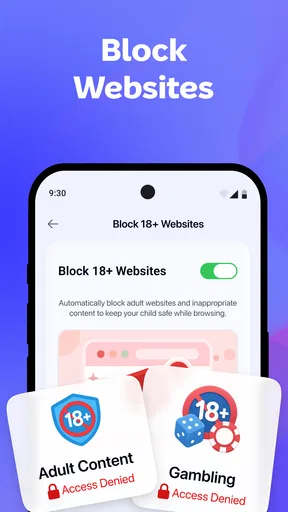
Kidden may offer controls for limiting applications, filtering online content, and creating screen-time schedules, but the exact behavior depends on the device, operating system, and selected plan. Restrictions may not apply equally to every browser, app, or system feature. After configuring rules, parents should test them on the child’s device and remember that parental-control software should complement conversation, supervision, and age-appropriate safety education.
Is Kidden Parental Control free, and is my family’s data secure?
Kidden may provide a free download with optional paid features, a subscription, or a trial period, so users should check the latest store description and pricing before creating an account. Review the privacy policy to understand what information is collected, how location and activity data are stored, whether data is shared with service providers, and how to cancel subscriptions or delete the family account.
